美化你的Terminal和Shell
Windows Terminal
大部分人拿到电脑的第一件事,基本上就是在图形界面上点来点去,我却很留恋DOS机上那种人和冰冷机器通过一条条指令交互的感觉。在Microsoft推出了全新的Windows Terminal后,我再也按捺不住这种冲动,开始“重用”这个小黑框。
背景美化
2025年8月19日更新:现在可以直接在终端图形化设置中调整
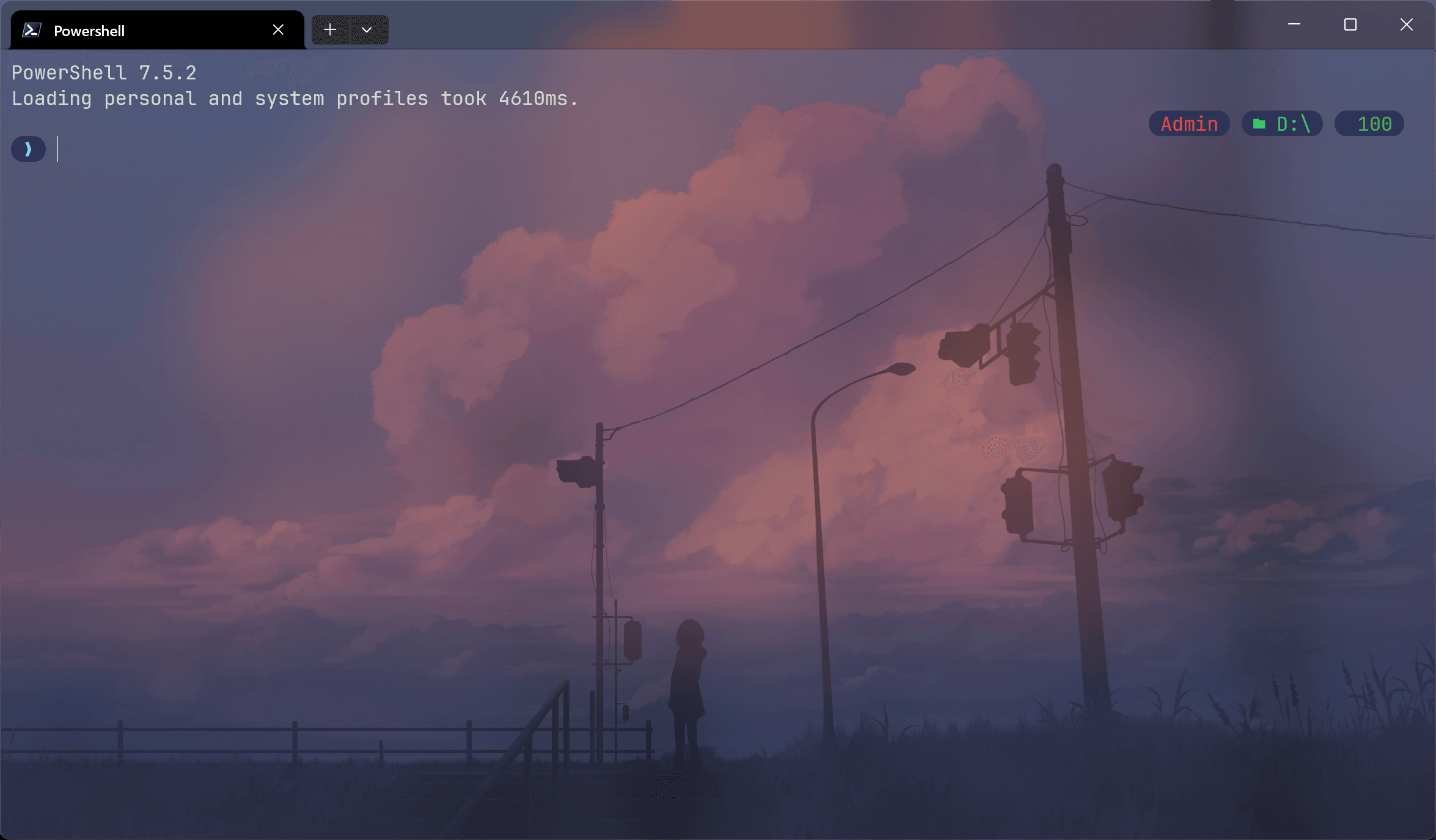
通过设置打开settings.json,找到profiles下的defaults,我们先开启亚克力效果。使用useAcrylic和acrylicOpacity,接着使用backgroundImage和backgroundImageOpacity设置背景图片。
以下是我目前使用的配置文件:
1
2
3
4
5
6
7
8
9
10
11
12
13
14
15
16
17
18
19
20
21
22
23
24
25
26
27
28
29
30
31
32
33
34
35
36
37
38
39
40
41
42
43
44
45
46
47
48
49
50
51
52
53
54
55
56
57
58
59
60
61
62
63
64
65
66
67
68
69
70
71
72
73
74
75
76
77
78
| {
"$help": "https://aka.ms/terminal-documentation",
"$schema": "https://aka.ms/terminal-profiles-schema",
"actions": [],
"copyFormatting": "none",
"copyOnSelect": false,
"defaultProfile": "{c246743b-256c-5aba-85df-0cbc23225ecb}",
"keybindings":
[
{
"id": "Terminal.CopyToClipboard",
"keys": "ctrl+c"
},
{
"id": "Terminal.PasteFromClipboard",
"keys": "ctrl+v"
},
{
"id": "Terminal.DuplicatePaneAuto",
"keys": "alt+shift+d"
}
],
"newTabMenu":
[
{
"type": "remainingProfiles"
}
],
"profiles":
{
"defaults":
{
"backgroundImage": "desktopWallpaper",
"backgroundImageOpacity": 0.29,
"colorScheme": "Vintage",
"font":
{
"face": "FiraCode Nerd Font"
},
"opacity": 0,
"useAcrylic": true,
},
"list":
[
{
"backgroundImage": "desktopWallpaper",
"commandline": "D:\\software\\Scoop\\apps\\pwsh\\current\\pwsh.exe -NoLogo",
"guid": "{c246743b-256c-5aba-85df-0cbc23225ecb}",
"hidden": false,
"icon": "D:\\software\\Scoop\\apps\\pwsh\\current\\pwsh.exe",
"name": "Powershell 7",
"startingDirectory": "D:\\"
},
{
"commandline": "%SystemRoot%\\System32\\WindowsPowerShell\\v1.0\\powershell.exe -NoLogo",
"guid": "{61c54bbd-c2c6-5271-96e7-009a87ff44bf}",
"hidden": false,
"name": "Windows PowerShell",
"startingDirectory": "D:\\"
},
{
"commandline": "%SystemRoot%\\System32\\cmd.exe -NoLogo",
"guid": "{0caa0dad-35be-5f56-a8ff-afceeeaa6101}",
"hidden": false,
"name": "\u547d\u4ee4\u63d0\u793a\u7b26"
},
{
"guid": "{b453ae62-4e3d-5e58-b989-0a998ec441b8}",
"hidden": false,
"name": "Azure Cloud Shell",
"source": "Windows.Terminal.Azure"
}
]
},
"schemes": [],
"themes": [],
"useAcrylicInTabRow": true
}
|
设置完成效果:
oh-my-posh美化你的Shell
oh-my-posh 下有一些带有图标或者特殊符号的主题,这时如果使用默认的 Consola 字体就会显示乱码,所以在配置 oh-my-posh 前,我们需要一个 Nerd Font,它为现有的字体打了一个补丁,支持了那些特殊符号,我们可以前往 https://www.nerdfonts.com/font-downloads 选择一个你喜欢的终端字体,然后下载安装就可以了,我选择了FiraCode Nerd Font。在Windows Terminal中,打开设置,找到“配置文件”下的“外观,设定为改变后的字体
打开https://ohmyposh.dev/,安装oh-my-posh。我使用的是scoop:
scoop install main/oh-my-posh或scoop install https://github.com/JanDeDobbeleer/oh-my-posh/releases/latest/download/oh-my-posh.json
接下来新建一个shell的配置文件:New-Item -Path $PROFILE -Type File -Force
在文件的最后一行加入以下内容:
oh-my-posh init pwsh --config 你选择的主题名称 | Invoke-Expression
如果不想要Powershell的提示信息,可以在Windows Terminal配置文件的某一个shell中增加-NoLogo参数,例如:
"commandline": "D:\\software\\Scoop\\apps\\pwsh\\current\\pwsh.exe -NoLogo"
在shell的配置文件最后一行加入winfetch,可以让启动更好看!
在VS Code内置的终端中,也可以修改字体,修改settings.json中的terminal.integrated.fontFamily为你选择的字体。例如:"terminal.integrated.fontFamily": "FiraCode Nerd Font"。